Migrate Your Server
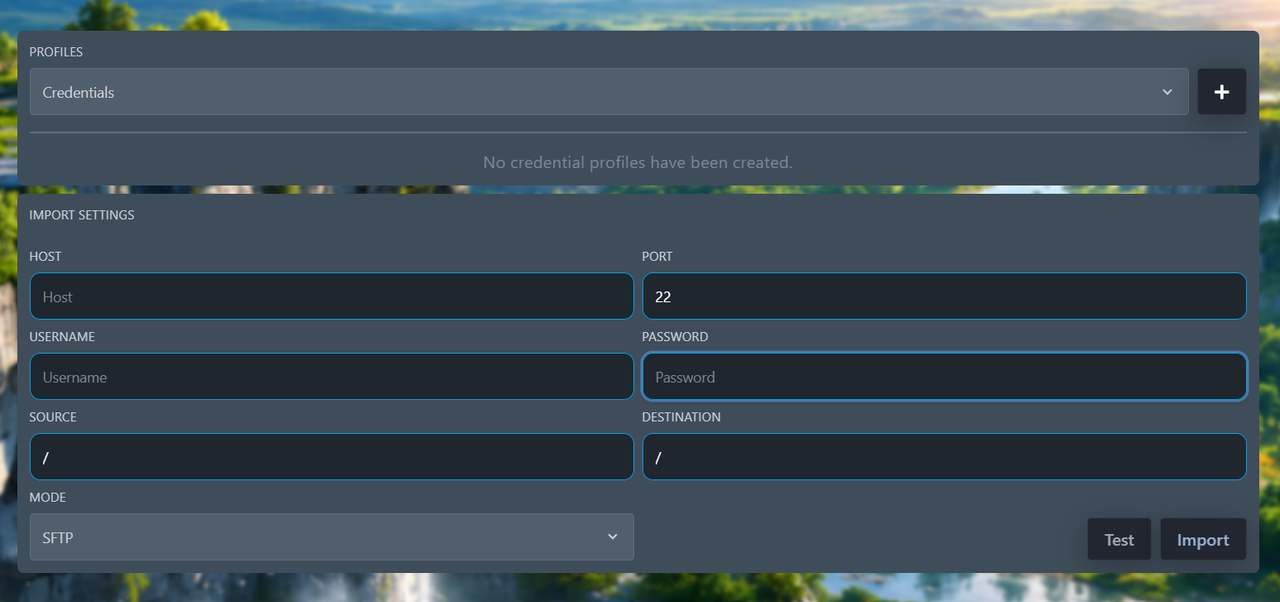
Move your Minecraft server to Caspian Host in just one click using our built-in Server Importer. Simply enter your existing hosting panel's SFTP details, and our importer will automatically transfer your server files without requiring manual uploads.
Watch Tutorial Video
Watch this YouTube video for a proper server import tutorial:
Import Steps
1. Host
Go to your old hosting panel. Open: Settings → SFTP. Locate the field called Server Address. Example: sftp://berlin.caspianhost.com:2022. Copy this address and paste it into the Host field inside the Server Importer. Do not modify anything else.
2. Username
Go to the same location: Settings → SFTP. Directly below the Server Address, you will find your SFTP Username. Example: staff5.a025a2. Copy this username and paste it into the Username field.
3. Password
Enter the password of your existing hosting panel account. This is the same password you use to log in to your old panel.
4. Source
Leave this option exactly as it is. Do not change the Source field. The importer already uses the correct value.
5. Destination
Do not modify the Destination field. The default destination is already configured correctly.
6. Port
The Port will automatically be detected after you enter the Host address. It should remain: 22. You do not need to edit this field manually.
Need Help?
If you experience any issues while importing your server, feel free to contact the Caspian Host support team through Discord. Our staff will gladly assist you with the migration process.
Ready to get started? Explore our game hosting plans.
Browse hosting plans